



Summary: A frozen Hyundai touch screen, Bluetooth that refuses to connect, a black display that will not wake up, or a navigation system acting confused: these are frustrating problems that can almost always be fixed in under a minute without a trip to the dealership. At McCarthy Hyundai of Lawrence, this is your complete guide to every reset method available for current Hyundai infotainment systems, when to use each one, and what to do if the reset does not resolve the issue.
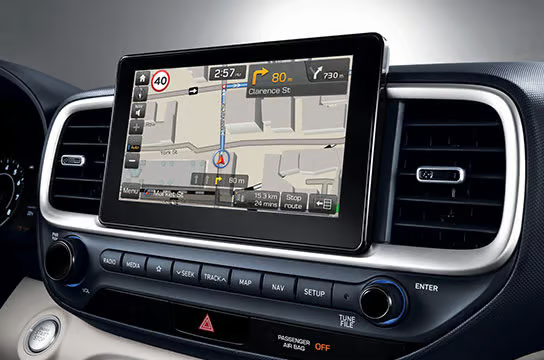
Why Hyundai Touch Screens Sometimes Need a Reset
Your Hyundai’s infotainment system is essentially a purpose-built computer. It runs an operating system, manages multiple connected devices simultaneously, processes navigation data, streams audio, and handles voice recognition. Like any computer, it occasionally encounters software states that cause it to behave unexpectedly.
A Hyundai infotainment system that needs a reset is not usually a sign of a hardware problem or a defect. It is the same kind of temporary software state that makes your smartphone feel sluggish or your smart TV’s app freeze. A reset clears the system’s memory and restores it to a clean operational state. Most issues that feel alarming, including a completely black screen, a completely unresponsive display, or Bluetooth that will not connect to any device, are resolved by one of the three reset methods below.
Common Issues a Reset Fixes
- Frozen or unresponsive touch screen: The display is on but does not respond to touch input, or shows a static image that does not update.
- Black screen that will not turn on: The display is completely dark even though the vehicle is running and the system should be active.
- Bluetooth connection problems: Previously paired devices will not connect, new devices cannot be discovered, or audio cuts in and out.
- Apple CarPlay or Android Auto not launching: The phone connects via cable or wirelessly but the CarPlay or Auto interface does not appear.
- Slow or sluggish performance: The system responds to touch but takes several seconds to register inputs or load screens.
- Navigation system errors: GPS fix is lost, route calculation fails repeatedly, or the map data appears incorrect.
- Audio glitches: Volume controls become unresponsive, audio source switching fails, or the system plays from an unexpected source.
Method 1: Soft Reset (Try This First, Takes About 15 Seconds)
The soft reset is the equivalent of restarting your phone. It clears the system’s active memory and forces a clean reboot without erasing any of your saved settings, paired devices, or preferences. This should always be your first step when the infotainment system misbehaves.
How to Perform a Soft Reset on Most Hyundai Models
- Make sure the vehicle is running or in accessory mode (press the engine start/stop button once without your foot on the brake to reach accessory mode if needed).
- Locate the power/volume knob on the center console near the infotainment screen.
- Press and hold the power button for approximately 10 to 15 seconds.
- The screen will go black, and after a moment the Hyundai logo will appear as the system reboots.
- Release the button when the logo appears and allow the system to complete its startup sequence, which typically takes 20 to 30 seconds.
- Test the system: try the touch screen, connect your phone via Bluetooth, and check the function that was causing the issue.
This method works on the vast majority of current Hyundai models including the Elantra, Tucson, Santa Fe, Sonata, Palisade, Kona, Ioniq 5, Ioniq 6, and others. It resolves most minor freezes, black screens, and software glitches without any data loss.
Method 2: Pinhole Reset Button (For Newer Models)
This is the reset method most Hyundai owners do not know about, and it is often the fastest fix for an unresponsive system. As noted by Consumer Reports, many newer Hyundai infotainment systems have a small, unmarked pinhole reset button located near the volume knob or on the infotainment panel in the center console.
How to Use the Pinhole Reset
- Look for a small unmarked hole, approximately the diameter of a ballpoint pen tip, near the volume knob or on the face of the infotainment panel.
- Straighten a paperclip or use a ballpoint pen tip and gently press into the hole until you feel or hear a slight click.
- Hold for one to two seconds and release.
- The system will power off and restart automatically.
- Allow the full startup sequence to complete before testing.
Not every current Hyundai model has this button in the same location, and some models may not have it at all. If you cannot find the pinhole, check your owner’s manual for the infotainment section, which will identify its location for your specific trim. If the pinhole is not present on your model, use Method 1 or Method 3.
Method 3: Factory Reset (Use When Soft Reset Does Not Help)
If the soft reset and pinhole reset do not resolve the problem, or if you are preparing your Hyundai for sale and want to remove all personal data, a factory reset restores the infotainment system to its original out-of-the-box state. This erases all saved preferences, paired Bluetooth devices, navigation history, and user profiles.
Important: Before performing a factory reset, note any custom settings you want to restore afterward, such as audio equalizer adjustments, driver profile preferences, or saved navigation destinations.
How to Perform a Factory Reset
- Tap the gear icon or Settings button on your infotainment screen to enter the Settings menu.
- Navigate to General or System settings. The exact menu label varies by model year and software version.
- Scroll to find Factory Reset, Reset System, or Initialize System. On some models this may be under a submenu labeled Initialization or System Restore.
- Select the reset option. The system will present a warning confirming that all data will be erased.
- Confirm the reset. The system will begin the erasure process and restart automatically.
- After the restart, the system will launch the initial setup wizard as if the vehicle were new.
After a factory reset you will need to re-pair all Bluetooth devices, re-enter any saved radio presets, reconfigure audio settings, and reconnect Apple CarPlay or Android Auto. If your Hyundai has a driver profile system, you will need to set those up again as well. Allow 10 to 15 minutes to restore your preferred settings after the reset completes.
A factory reset is the appropriate first step when selling or trading in your Hyundai to ensure no personal data, navigation history, or connected accounts remain accessible to the next owner.
Troubleshooting Specific Issues
Bluetooth Will Not Connect After a Reset
After a soft or factory reset, you may need to fully delete the vehicle from your phone’s Bluetooth settings and re-pair from scratch rather than simply reconnecting. On your iPhone, go to Settings, then Bluetooth, find your Hyundai’s entry, tap “Forget This Device,” and then pair again from the vehicle’s Bluetooth menu. On Android, go to Settings, Connected Devices, find the vehicle entry, and select “Forget” before re-pairing.
Apple CarPlay or Android Auto Still Not Working After Reset
If wireless CarPlay or Auto does not launch after a reset, try the following sequence in order: forget the vehicle in your phone’s Bluetooth settings and re-pair, then forget the vehicle in your phone’s Wi-Fi settings (wireless CarPlay uses Wi-Fi), restart your phone, and attempt the connection again. If you are using a wired connection, try a different Lightning or USB-C cable, since cable quality significantly affects CarPlay and Auto reliability. Official Apple or Google cables are the most reliable option.
Screen Is Still Black After a Soft Reset
If the screen remains black after a soft reset, try the following: turn the vehicle completely off, wait 60 seconds, and restart. This clears a wider range of system states than a soft reset alone. If the screen remains dark after a full vehicle restart, the issue may be beyond a software glitch and should be diagnosed by our certified service team.
Navigation Is Outdated or Incorrect
If your map data appears outdated, roads are missing, or addresses cannot be found after a reset, the underlying map data may need to be updated rather than the system being reset. Hyundai provides navigation software updates through the Hyundai Navigation Update portal. Many current Hyundai models also receive map updates over-the-air through Bluelink when connected to Wi-Fi. Check your vehicle’s software update settings in the infotainment system menu to see if an update is available.
When to Update Your Hyundai’s Software Instead of Resetting
A reset clears active memory and temporary software states. But if the same issue returns repeatedly after resets, the underlying cause may be a software bug that Hyundai has already addressed in an update. Hyundai releases infotainment software updates that fix known bugs, improve Bluetooth compatibility with new phone operating system versions, enhance CarPlay and Android Auto performance, and address navigation system issues.
To check for available updates:
- In your vehicle’s infotainment Settings menu, look for System Update or Software Update. Some models will check for over-the-air updates automatically when connected to Wi-Fi through Bluelink.
- Visit the Hyundai update portal, enter your VIN, and check for available software versions for your specific model.
- Our service team at McCarthy Hyundai of Lawrence can check your current software version and apply any available updates during a service visit using Hyundai’s dealer-level diagnostic tools, which access updates not available through the standard consumer portal.
When a Visit to McCarthy Hyundai of Lawrence Is the Right Call
Most infotainment issues are resolved by one of the three reset methods above. But some situations genuinely warrant a professional diagnosis:
- The screen remains black or unresponsive after a soft reset, pinhole reset, and a full vehicle power cycle.
- The same issue returns within days or hours of each reset, suggesting an underlying software or hardware problem rather than a temporary state.
- Multiple systems are affected simultaneously, for example the infotainment screen, the backup camera, and the climate control display all malfunctioning together, which may suggest an electrical rather than a software issue.
- The touchscreen shows physical damage such as dead zones that do not respond, lines across the display, or flickering that looks like a hardware failure.
- Your Hyundai has a current software update available that addresses your specific issue and you want it applied using dealer-level tools.
Our factory-certified technicians use Hyundai’s proprietary diagnostic equipment to identify the exact cause of infotainment issues, apply software updates at the dealer level, and replace hardware components with genuine OEM parts when necessary. Schedule a service appointment online any time.
Key Takeaways: Resetting Your Hyundai Touch Screen
- ✅ Soft reset: Press and hold the power/volume knob for 10 to 15 seconds. Resolves most issues. No data loss. Try this first.
- ✅ Pinhole reset: Use a paperclip on the small reset button near the volume knob on newer models. Fast and effective for unresponsive screens.
- ✅ Factory reset: Access through Settings, then General or System, then Factory Reset. Erases all data. Use when soft reset fails or when selling the vehicle.
- ✅ After any reset, re-pair Bluetooth devices by first forgetting the vehicle in your phone’s Bluetooth settings and re-pairing fresh.
- ✅ Persistent issues after multiple resets may indicate a software update is needed or a hardware problem that requires professional diagnosis.
- ✅ Check for available software updates at update.hyundai.com or through your vehicle’s infotainment settings menu.
Why Choose McCarthy Hyundai of Lawrence for Infotainment Service?
If a reset does not resolve your infotainment issue, McCarthy Hyundai of Lawrence is the right place for accurate diagnosis and repair:
- Factory-Certified Hyundai Technicians: Our team is trained on Hyundai’s specific infotainment architectures and has access to dealer-level diagnostic tools and software update capabilities that are not available through consumer channels.
- Genuine OEM Parts: When a hardware component needs replacement, whether a screen, a control module, or a camera unit, we use Hyundai-approved parts that maintain your warranty and your vehicle’s original specifications.
- 4.5-Star Google Rating with Nearly 1,500 Reviews: Honest, accurate service that the Lawrence community has trusted for years.
- Easy Online Scheduling: Book your service appointment online any time, 24 hours a day.
- Right Here in Lawrence: Find us at 2829 Iowa St, Lawrence, KS 66047. Call us at (785) 838-2327 with any questions.
Conclusion: Most Touch Screen Issues Are a 15-Second Fix
The next time your Hyundai’s infotainment system freezes, goes dark, or refuses to connect to your phone, take a breath before assuming the worst. A 15-second press of the power knob resolves the majority of issues that feel alarming in the moment. For the issues that persist, a factory reset or a software update usually finishes the job. And for the rare cases where neither helps, our certified team at McCarthy Hyundai of Lawrence has the tools and training to identify exactly what is happening and fix it correctly.
📍 Visit us: 2829 Iowa St, Lawrence, KS 66047
📞 Call us: (785) 838-2327
🔧 Schedule a service appointment | Explore our service center
Frequently Asked Questions: Hyundai Touch Screen Reset
How do I reset my Hyundai touch screen?
Press and hold the power/volume knob on the center console for 10 to 15 seconds until the screen goes dark and the Hyundai logo appears. This soft reset resolves most freezing, black screen, and connectivity issues without erasing any saved settings or paired devices. If that does not work, look for a small pinhole reset button near the volume knob and press it gently with a straightened paperclip.
Will resetting my Hyundai touch screen delete my settings?
A soft reset does not delete any settings, paired devices, or saved preferences. It simply restarts the system. A factory reset, accessed through Settings then General or System, erases all saved data including paired Bluetooth devices, audio presets, and user profiles. Only perform a factory reset if the soft reset has not resolved the issue or if you are preparing the vehicle for sale.
Why does my Hyundai touch screen keep freezing?
Occasional freezing is typically caused by a temporary software state, similar to an app freezing on a smartphone. A soft reset usually resolves it immediately. If the screen freezes repeatedly after resets, the infotainment system may need a software update to address a known bug. Check for available updates at update.hyundai.com or ask our service team to check your current software version.
My Hyundai Bluetooth will not connect after a reset. What should I do?
After a reset, fully delete your Hyundai from your phone’s Bluetooth settings rather than simply reconnecting. On iPhone: Settings, Bluetooth, select your Hyundai, tap “Forget This Device.” On Android: Settings, Connected Devices, select your Hyundai, tap “Forget.” Then re-pair from the vehicle’s Bluetooth menu as if connecting for the first time.
How do I factory reset my Hyundai infotainment system?
Tap the gear icon to open Settings, then navigate to General or System settings. Look for Factory Reset, Reset System, or Initialize System and select it. Confirm the warning that all data will be erased. The system will restart with default factory settings. You will need to re-pair Bluetooth devices and restore audio and profile preferences afterward.
When should I bring my Hyundai to a dealer for touch screen issues?
Visit our service center if the screen remains unresponsive after a soft reset, pinhole reset, and full vehicle power cycle; if the same issue recurs repeatedly after resets; if multiple systems are affected simultaneously; or if the screen shows signs of physical damage like dead zones or display lines. Schedule online or call us at (785) 838-2327.


